
Accessing AI Animation
How to request access, accept an invitation, set up an invited login, or sign in to AI Animation
AI Animation is currently accessed by invitation. Your login identifies you; your workspace membership determines which company or Individual workspace you can open.
Before you start
You'll need:
- Access to the email address that received the invitation
- A password, or a Google or LinkedIn account
Step 1 — Open your invitation
Your invitation email contains a unique link. Open it to review the workspace, assigned role and expiry date.
Company workspace
The page shows the organisation you have been invited to join and checks whether a login already exists for the invited email.
Individual workspace
A site-admin invitation can offer a separate Individual workspace. The invitation shows any activation credits included in that offer.
Existing user
If you already have a login, sign in. The invitation will be accepted into that existing account when the email matches.
Step 2 — Create or use your login
If no login exists, choose Create your login. Your invited email is filled in and locked so the resulting identity matches the invitation.
- Enter your Email Address
- Choose a Password and enter it again in Confirm Password
- Click the button to create your login and join or activate the invited workspace
Your password must meet the security requirements shown if the form rejects it (typically at least 8 characters with a mix of upper/lowercase letters, numbers, and symbols).
Click Continue with Google and choose the Google account using the invited email. No separate password is needed.
Click Continue with LinkedIn and use the LinkedIn identity associated with the invited email.
Step 3 — Verify your email (invited email login only)
If you set up an invited login with email and password, AI Animation sends a verification code to your inbox. The invitation flow switches to a verification screen like this:
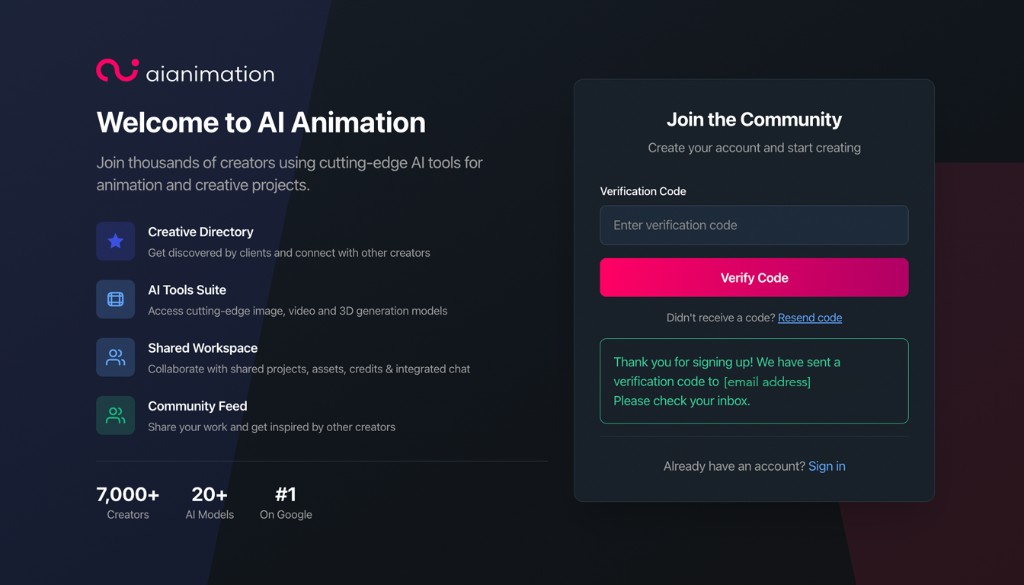
- Check your email (and spam/junk folder if needed)
- Copy the verification code from the email
- Paste it into the Verification Code field
- Click Verify Code
Didn't get the code? Click Resend code on the verification screen.
Step 4 — Open your workspace
After successful authentication:
- A company invite takes you directly into the organisation workspace
- An Individual invite opens the separate personal workspace offered to you
- Existing users retain access to all of their current workspaces
- The workspace selector lets eligible users move between workspaces
Company projects, credits, billing and controls remain separate from an Individual workspace.
Troubleshooting
Next steps
- What is AI Animation? — platform overview
- What is Ani? — meet your production assistant
- Create a New Project
- Setting Up Your Account — profile and dashboard overview
- Writing Effective Prompts — get better generation results
- Common Issues — if something isn't working
Accepting an invitation typically takes about 3 minutes.
Looking for something else?
Tags
Related Articles
What is AIAnimation.com?
What AIAnimation.com is, who it's for, and how the production platform fits together
Setting Up Your Account
Get oriented in the dashboard, profile menu, credits, and project pipeline after you sign in
Create a New Project
Start a production with Ani or set up a project manually from the Projects hub