
Models & Credits
Choose image and video models, understand credit costs, and switch between personal and project pool credits
Every generation uses a model and spends credits (unless you're in an eligible draft/unlimited mode). This guide covers the model picker and how to fund generations.
Part of: Asset Library (Create)
Opening the model picker
In the Generator bottom bar (labelled Shot Director), click the button showing the current model name and icon. A dropdown lists every model available to you in the active mode (Image or Video).
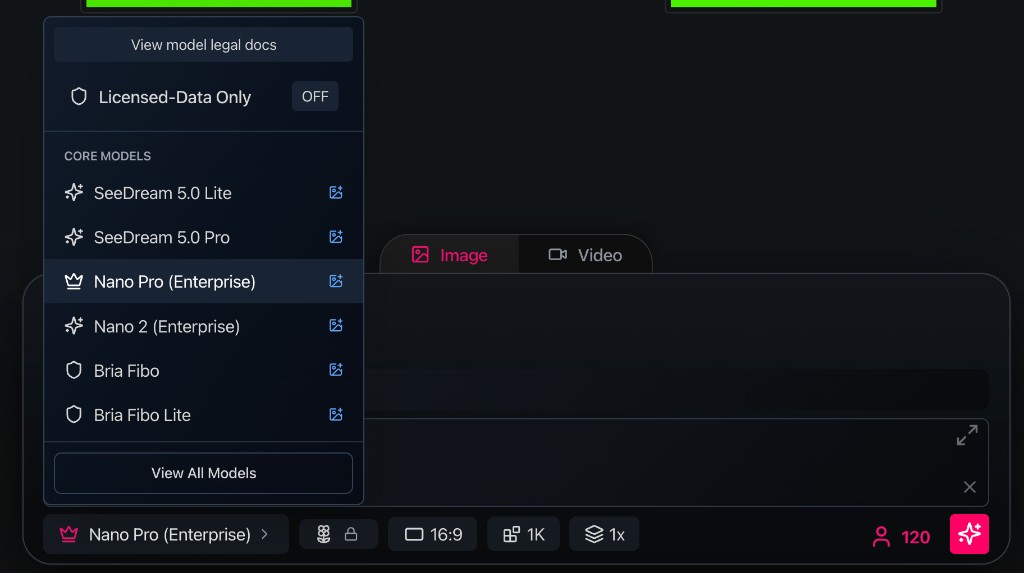
The open menu shows View model legal docs, Licensed-Data Only, model groups such as Core Models, and View All Models. The bar below displays the active model, aspect ratio (16:9), resolution (1K), batch count (1x), credit cost, and the pink Generate button.
Switch modes with the Image (I) or Video (V) tabs first — each mode has its own model list.
Model groups
Models are grouped for scanning, for example:
- Core Models
- Nano Models
- SeeDream Models
- Flux Models
- Bria Models
- Other Image Models / Other Video Models
Exact groups depend on what's enabled for your workspace and folder.
Reading a model row
Each model shows:
- Name — user-facing label (e.g. Kling, SeeDance, Veo, Flux)
- Premium badge — higher credit cost tier on some models
- Capability icons:
- ∞ — unlimited/draft mode available (when your plan supports it)
- Image icon — accepts reference images
- Audio icon — can generate synchronized audio (video)
Licensed-data filter
Toggle Licensed-Data Only (ON / OFF) at the top of the picker to hide models that don't meet licensed-data requirements for your workspace.
Link: View model legal docs for compliance details.
Restricted models
Some models appear greyed out with a reason:
| Message | Meaning |
|---|---|
| Blocked by folder policy | Project or folder model policy excludes this model |
| Not assigned by Site Admin | Org workspace hasn't assigned this model to you |
| Enterprise entitlement messages | Vertex/Google or other enterprise-gated models |
Folder Share settings include a Models tab where admins set allowed models per shared folder.
Choosing a model
Quick guidance:
| Goal | Starting point |
|---|---|
| Hero still image | Core image models or SeeDream — see Writing Prompts |
| Image-to-video, high fidelity | Kling family — see Video Best Practices |
| Long clips, edit, or extend video | Seedance 2.5 — create, edit, or extend with rich references |
| Video with audio | Kling 2.6, SeeDance 1.5, Veo 3.1, Seedance 2.5 |
| Lip-sync dialogue | Veo 3.1 at 720p |
| Fast iteration | Models with ∞ draft/unlimited when available on your plan |
Always verify the model in the picker — availability changes by workspace, plan, and policy.
Credit cost indicator
Next to the model picker, a credit indicator shows the cost of the current settings:
- Personal — user icon + number
- Project pool — users icon + number
- Unlimited/draft — infinity icon + 0
Hover or click the indicator to open the credit source popover.
Credit sources
| Source | Label | When to use |
|---|---|---|
| Personal | Personal + your balance | Solo work, or when the project pool is empty |
| Project pool | Project pool + balance | Shared projects with a pooled credit account |
Switch with Use on the row you want active. The selected row shows Active.
Empty project pool
Pool is empty. Generation will prompt to use personal credits. — add pool credits via Add (owners/admins) or switch to personal before generating.
Org workspace members: personal credits may be restricted — generations route through workspace pools and policies.
Unlimited / draft mode
On eligible Individual plans, some models support unlimited or draft generation — iterate without spending credits on every attempt, under fair usage. The ∞ icon in the model row marks candidates.
Use drafts to explore; switch to standard credit generation for finals and premium resolutions. Details on the Pricing FAQ.
Before you generate
- Confirm credit source and balance
- Confirm model matches your reference setup (some need start frames)
- Check resolution — wrong resolution can waste credits on poor results
- For video, read Video Generation Best Practices
Failed generations may still reserve and release credits depending on failure stage — refresh your balance from the profile menu if something looks off.
Ani and credits
When Ani proposes Run image generation or Run video generation, it runs a credit preflight first. You confirm the action explicitly — credits are not spent without approval.
Component promotion and reference-sheet processing can also spend credits; Ani labels these in the action proposal.
Related
- The Generator
- Setting Up Your Account — credits overview
- Common Issues — missing credits after purchase
Looking for something else?
Tags
Related Articles
Seedance 2.5: Create, Edit & Extend
Use Seedance 2.5 for longer clips, richer references, and three video tasks — create new video, edit an existing clip, or extend it forward or backward
Asset Library (Create)
Your hub for generating, organising, and managing project assets — with deep guides for every part of the workspace
Uploads & References
Upload files, manage the reference strip, and feed images into the generator