
Create a New Project
Start a production with Ani or set up a project manually from the Projects hub
Every production starts as a project — a workspace with folders, a plan, storyboards, and assets. Open the Projects hub to create one:
There are two ways to get started: chat with Ani (recommended) or create manually.
Option 1 — Chat with Ani
Ani is your production assistant. Describe what you want to make and Ani will help set up the project for you.
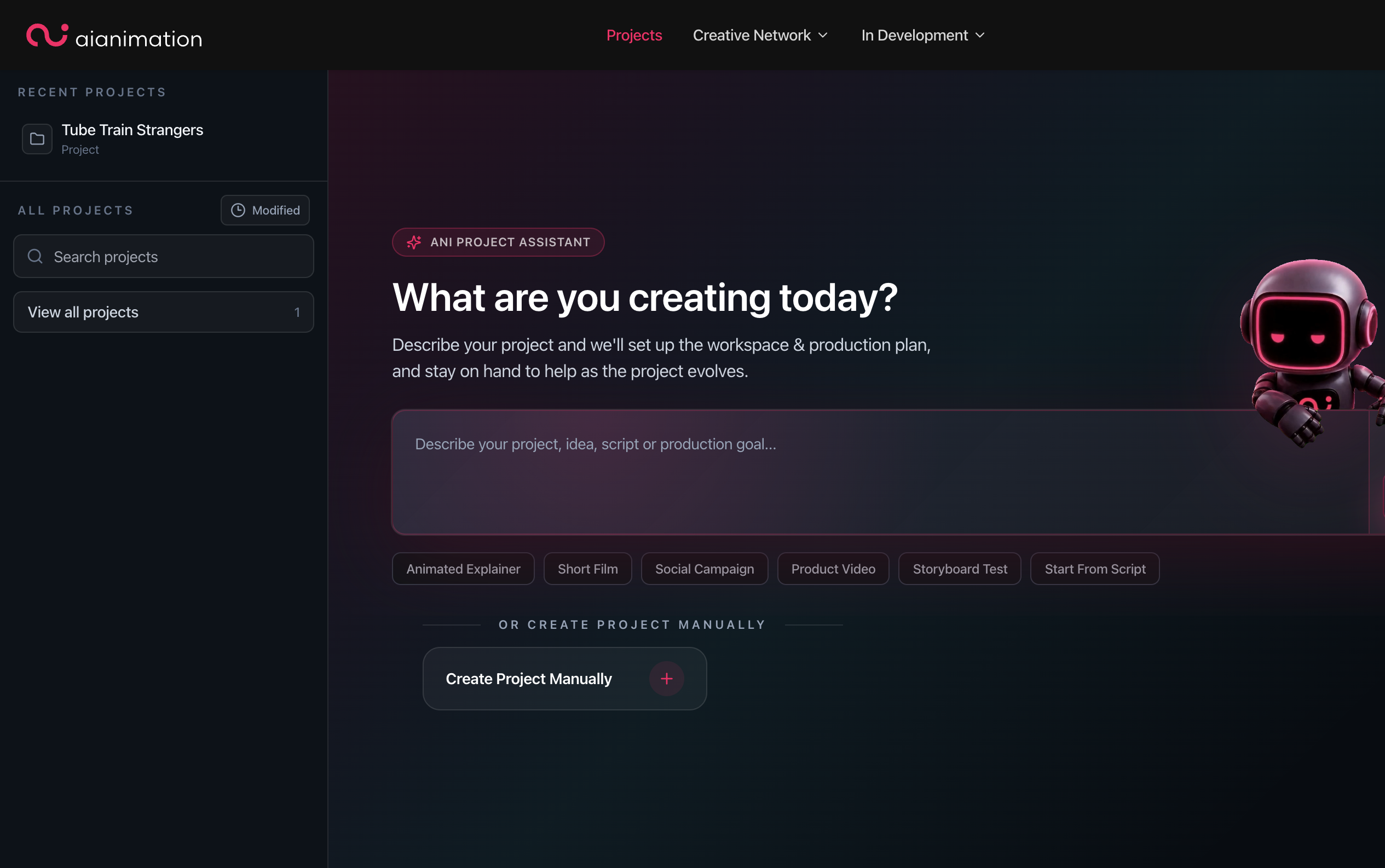
Open Projects
After signing in, go to Projects in the top navigation (or open /dashboard/assets/).
Describe your idea
In the What are you creating today? box, type a short description of your project — for example, a 30-second product video, a short film, or a storyboard test.
You can also click a quick-start chip such as Animated Explainer, Short Film, or Start From Script to pre-fill the prompt.
Ask Ani
Click Ask Ani. Ani opens in the sidebar and reads your brief.
Ani may ask a follow-up question if something is unclear. Answer in plain language — you do not need to know technical details upfront.
Review and confirm
When Ani is ready, it proposes a Create Project action with a name, folder structure, and (where relevant) a starter production plan.
Review the proposal and confirm. Ani creates the workspace and sends you into the project.
Tap the How Ani helps icon (top right of the starter panel) for a quick summary of what Ani does during setup.
Option 2 — Create manually
Prefer to name the project yourself? Use manual setup instead.
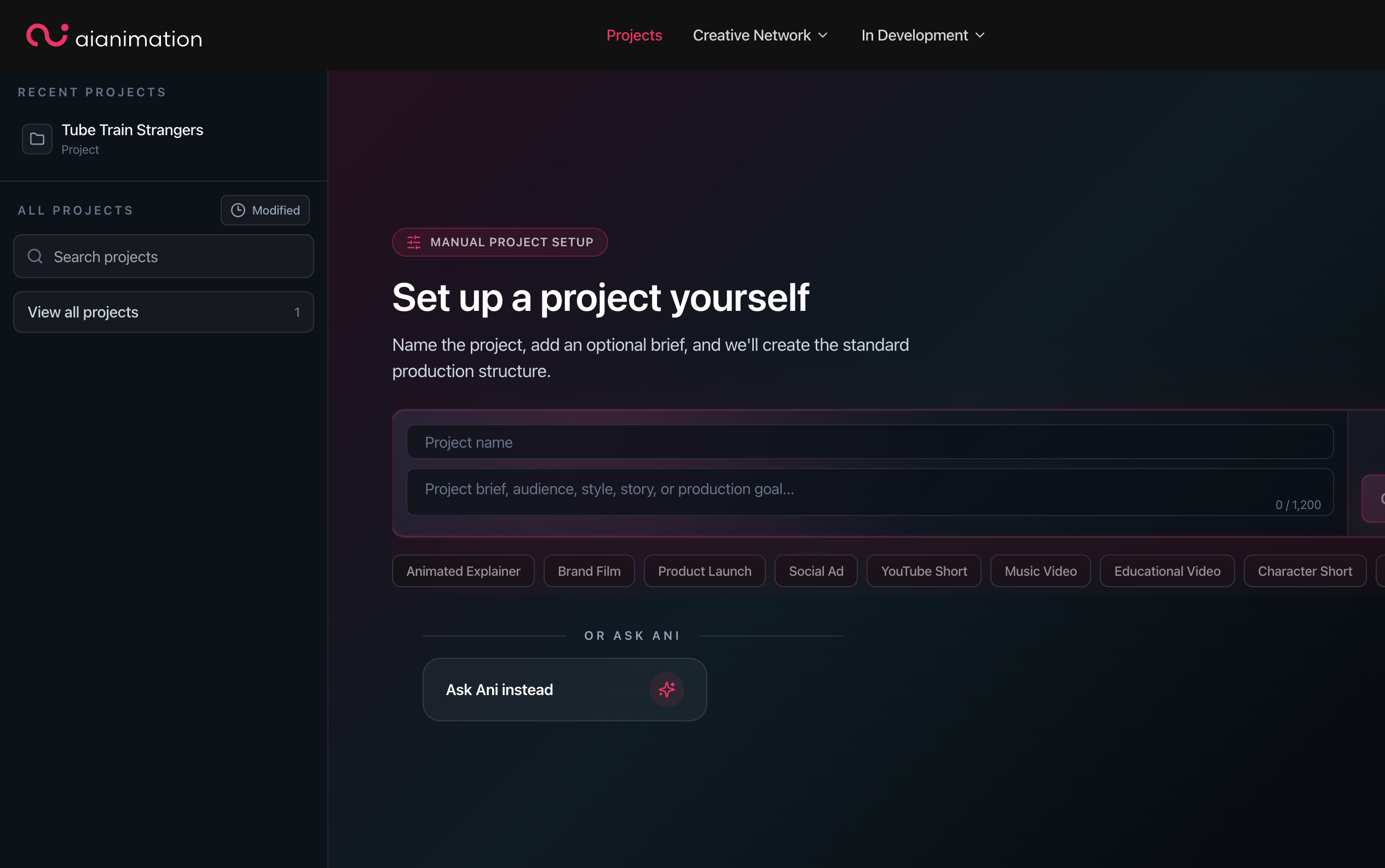
Switch to manual mode
On the Projects hub, scroll below the Ani starter and click Create Project Manually.
You can also open manual mode directly: /dashboard/assets/?create=manual
Name your project
Enter a Project name (required).
Optionally add a Project brief — audience, style, story, or production goal. Use the preset chips (Animated Explainer, Brand Film, etc.) if you want example brief text to edit.
Create Project
Click Create Project. The standard production folder structure is created for you and the project opens ready to work in.
After your project is created
You land in your new project workspace. From there you can:
- Open Plan to refine the production plan and script
- Go to Create to generate and organise assets
- Open Storyboard to lay out shots
Ani stays available in the sidebar on those pages as your production copilot.
Troubleshooting
Ani did not create the project — Check that you confirmed the proposed Create Project action in the chat. If you dismissed it, describe your idea again and ask Ani to set up the project.
Manual Create Project is disabled — You must enter a project name before the button becomes active.
Next steps
- The Production Pipeline — what to do on Plan, Create, and Storyboard after your project opens
- What is Ani? — how Ani works across Plan, Create, and Storyboard
- Accessing AI Animation — if you need an invitation or login
- Setting Up Your Account — dashboard overview after sign-in
This guide typically takes 2 minutes to complete.
Looking for something else?
Tags
Related Articles
What is AIAnimation.com?
What AIAnimation.com is, who it's for, and how the production platform fits together
What is Ani?
Meet Ani — your AI production assistant for planning, creating, and storyboarding inside every project
Accessing AI Animation
How to request access, accept an invitation, set up an invited login, or sign in to AI Animation