
Asset Library (Create)
Your hub for generating, organising, and managing project assets — with deep guides for every part of the workspace
The Asset Library is the Create stage of your project — where you generate images, video, audio, and 3D assets, organise them into folders, and connect them to storyboards and production components.
Open it from the pipeline toolbar (Create) or directly at /dashboard/assets/ inside a project.
Workspace layout
Inside a project, the Create workspace has four main zones:
┌─────────────┬──────────────────────────────────────┐
│  Sidebar    │  Gallery (filters + asset grid)      │
│  tabs       │  Uploads / Favourites lane (top)     │
│             ├──────────────────────────────────────┤
│  Project    │  Generator (bottom, when On/Mini)     │
│  Components │  AI Tools dock                       │
│  Tools      │                                      │
│  Notes      │                                      │
└─────────────┴──────────────────────────────────────┘
| Zone | What it does |
|---|---|
| Left sidebar | Folder tree, production components, AI tools, and asset notes |
| Gallery | Browse, filter, select, and preview all assets in the current folder |
| Uploads lane | Quick access to uploads and favourites as generator references |
| Generator | Image and video generation (fixed panel at the bottom) |
| Ask ANI | Production assistant bar below the AI Tools dock |
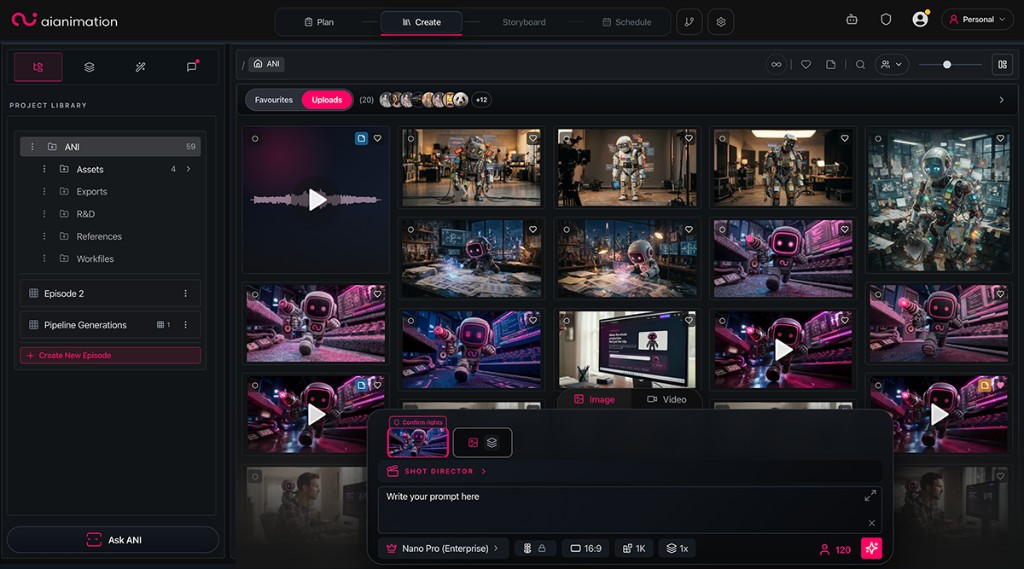
The Create pipeline step (highlighted in the top toolbar) opens this view. Left: Project Library folder tree. Centre: asset grid with Favourites / Uploads strip. Bottom: Shot Director generator with model, aspect ratio, and Generate.
First visit: working areas vs gallery
When you open Create for a project, you often land on working areas — cards for each episode or general area showing storyboard frames, timeline videos, and storyboards.
- Pick an area to work in, or open a folder from the sidebar to reach the asset gallery
- Click the project name in the sidebar tree to jump straight to the gallery view
Details: Project Sidebar & Folders.
Guide index
Work through these in order, or jump to what you need:
Navigation & structure
Project Sidebar & Folders
Episodes, folder tree, create/rename/share/delete, working areas, and Ask ANI.
Browsing assets
Gallery, Filters & Layout
Media type filters, favourites, notes filter, search, creator filter, and grid/masonry/list layouts.
Uploads & References
Upload lane, favourites strip, drag-and-drop uploads, and using files as generator references.
Organising assets
Selection, Move & Bulk Actions
Select, move, download, delete, and add assets to storyboards.
Expanded View
Full-screen preview, reference strip, side-by-side and slide-over comparisons, magnifier, favourites, and download.
Generating
The Generator
Image/Video modes, prompts, references, Off/On/Mini visibility, and the Generate button.
Models & Credits
Model picker, Image vs Video tabs, licensed-data filter, personal vs project pool credits.
Extra tools
AI Tools & Notes
Upscale, Restyle, Frames, 3D, Audio Gen, History, and the Notes inbox.
Quick workflows
Generate your first asset
Open a folder → set the generator to On (Tools sidebar or AI Tools dock) → choose Image or Video → pick a model → write a prompt → click Generate.
Organise results
Drag assets into subfolders, mark favourites, or add notes with status (Needs Work, In Progress, Done).
Use references
Upload images to the Uploads lane or drag existing assets into the generator reference slots.
Hand off to storyboard
Select assets → Add To Storyboard — or open a working area and Create Storyboard.
Ani on Create
Click Ask ANI in the sidebar to open the assistant. Ani can apply generator settings, attach references, run image/video generation (with your confirmation), organise assets into folders, create production components, and add selected assets to a storyboard.
See What is Ani?.
Permissions & gates
- Viewers on shared projects can browse but cannot generate or use AI tools
- Editors on shared folders may have restricted move destinations (personal folders disabled)
- Some tools (History, Shotlist PDF) require Studio or Enterprise workspaces
- The Components tab appears when production components are enabled on your workspace
Related guides
- Asset Library (Create) — full Create workspace documentation
- The Production Pipeline
- Writing Effective Prompts
- Video Generation Best Practices
- Common Issues & Solutions
Start with Project Sidebar & Folders if you're new to the Create workspace.
Looking for something else?
Tags
Related Articles
Project Sidebar & Folders
Navigate episodes, the folder tree, working areas, and project structure in the Asset Library
Gallery, Filters & Layout
Find assets fast with type filters, favourites, notes, search, creator filters, and layout options
Uploads & References
Upload files, manage the reference strip, and feed images into the generator