
Project Sidebar & Folders
Navigate episodes, the folder tree, working areas, and project structure in the Asset Library
The left sidebar is how you navigate your project's structure. Open it from the Project tab when you're inside a project on Create.
Part of: Asset Library (Create)
Sidebar tabs
| Tab | Purpose |
|---|---|
| Project | Folder tree and episode/working-area navigation |
| Components | Production components library (when enabled on your workspace) |
| Tools | Generator visibility, Upscale, Restyle, Frames, 3D, Audio Gen, History |
| Notes | Asset note threads and project discussion |
Switch tabs with the icons along the left edge. An unread dot on Notes means new activity.
Project Library (folder tree)
The Project tab shows your Project Library — a tree rooted at the project name.
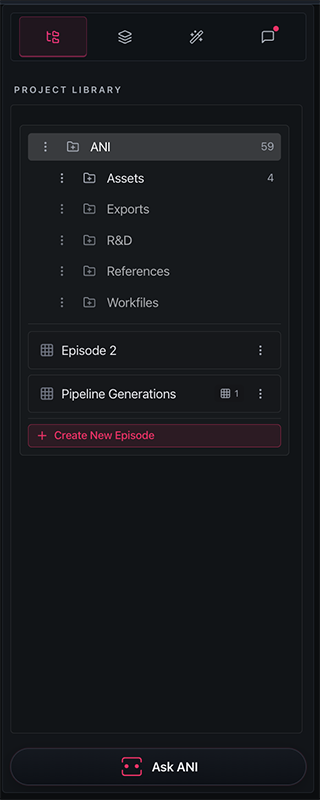
The icon strip on the far left switches tabs: Project (folders), Components, Tools, and Notes. Under PROJECT LIBRARY, expand the project to see subfolders, episodes, and Create New Episode at the bottom.
Navigating folders
- Click the project name → opens the full asset gallery for the project root
- Click a subfolder → opens that folder's gallery
- Expand / collapse chevrons reveal nested folders
- Asset count badges show how many items live in each folder
Creating folders
- Click Create project library folder (+) on the project root, or Create subfolder on any folder row
- Type a name (placeholder: New folder name)
- Press Enter to save, or Cancel to discard
Suggested uses: Characters, Environments, References, Props, Renders, Exploration.
Folder options menu
Click Folder options (⋮) on any folder:
| Action | Who can use it |
|---|---|
| Rename | Editors and above; system folders may be restricted |
| Share | Owners and admins — opens the share modal (individual, team, credit pool, models) |
| Delete | Owners on most folders; system folders cannot be deleted |
Inline rename uses placeholder Rename folder or Rename project on the root.
Shared folders
Shared projects and folders show a Shared badge and a users icon. Your role (Viewer, Editor, Admin) controls what you can change.
Drag assets onto folders
You can drag assets from the gallery onto any folder row in the tree to move them — no modal required. The folder highlights with a pink ring when it's a valid drop target.
Working areas (default project entry)
When you first open Create inside a project, you may see Choose where you want to work instead of the asset grid. This is the areas view.
Each card represents an episode or general project area and shows:
- Storyboard Frames count
- Timeline Videos count
- Boards (storyboards) count
Actions:
- Open area — enter that area's outputs
- Create Storyboard — start a new board when none exists
- Create New Episode — add another episode to the project
Area destinations
Inside an area, destination cards let you jump to:
- Open Storyboard Frames
- Open Timeline Videos
These shortcuts connect Create to the Storyboard stage without hunting through folders.
Gallery view
To see the flat asset grid for a folder:
- Click the project name or any folder in the tree, or
- Add
?projectUi=galleryto the URL when on the project root
The gallery view is where filters, the uploads lane, selection bar, and generator all appear together.
Episodes
Episode-first projects organise work by episode. The sidebar and areas view both respect episode scope — storyboards and outputs are grouped under the episode you're working in.
Use Create New Episode from the areas view when you need another episode container.
Ask ANI
Below the AI Tools dock, Ask ANI opens the production assistant. From the sidebar context, Ani can:
- Create folders inside the project
- Organise selected assets into folders
- Apply generator settings and run generations (with confirmation)
- Add selected assets to a storyboard
Building Project Tree
When a project is first created, you may briefly see Building Project Tree while default folders are provisioned. Refresh if the tree seems empty after creation.
Next in this series
- Gallery, Filters & Layout
- Selection, Move & Bulk Actions
- Asset Library (Create) — full guide index
Looking for something else?
Tags
Related Articles
Asset Library (Create)
Your hub for generating, organising, and managing project assets — with deep guides for every part of the workspace
Gallery, Filters & Layout
Find assets fast with type filters, favourites, notes, search, creator filters, and layout options
Uploads & References
Upload files, manage the reference strip, and feed images into the generator