
Expanded View
Inspect assets full-screen, compare against references side by side or with a slider, and zoom image details
Expanded view is the full-screen preview for inspecting a generation up close, stepping through neighbouring assets, and comparing the final result against the reference images used to create it.
Part of: Asset Library (Create)
How to open expanded view
You can open it from several places in the gallery:
Double-click an asset
Double-click any completed image or video card in the grid. This is the fastest way in.
Expand button on a grid card
Hover an asset thumbnail and click the small expand icon (top-right of the card).
Side preview panel
Click an asset to focus it in the preview panel, then click the preview image/video or the expand button in the corner of the preview.
Press Escape or click Close (X) to exit. Use ← and → in the top bar to move to the previous or next asset in the gallery.
Top bar controls
The header shows the asset prompt title and media type (e.g. Image, Video).
| Control | What it does |
|---|---|
| ← / → | Previous / next asset in the current gallery list |
| Magnifier | Zoom into image detail (images only, Full view) — hover to pick zoom level (e.g. 2x, 4x) |
| Heart | Add to or remove from Favourites |
| Download | Save the file locally |
| Info | View generation details (failed or incomplete jobs) |
| Close (X) | Exit expanded view |
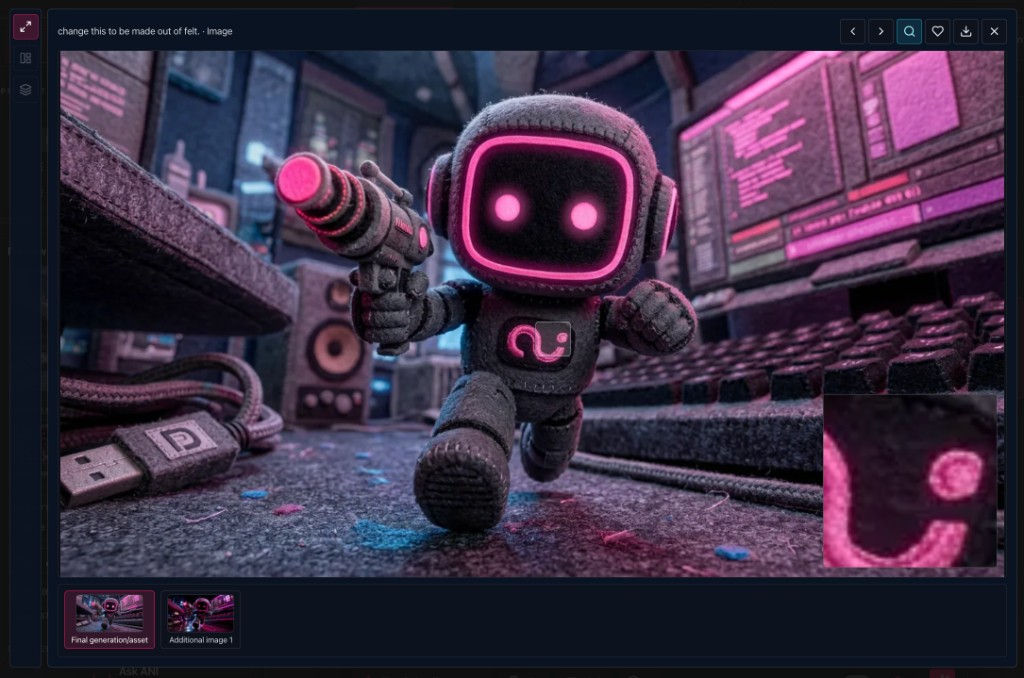
In Full view, move the magnifier loupe over the image to inspect texture and fine detail in the zoom window.
Reference strip (images & video)
For image and video generations that used reference inputs, a reference strip appears along the bottom of expanded view.
Thumbnails typically include:
- Final generation/asset — the completed output
- Additional image 1, Additional image 2, etc. — reference images attached during generation (start frame, style ref, character ref, and so on)
Click any thumbnail to select it. The pink highlight shows which item is active.
While references are loading you may see Loading refs... briefly.
View modes (left toolbar)
On wider screens, a vertical toolbar on the left switches how you see the selected media:
| Mode | Icon | Label | Best for |
|---|---|---|---|
| Full view | Expand | Full view | Single image or video at full size; magnifier works on the final asset |
| Side by side | Two panels | Side by side | Compare reference vs final in two panels |
| Slide over | Layers | Slide over | Wipe between reference and final with a draggable slider |
Side by side and Slide over activate when you select a reference thumbnail (not the final) and both the reference and final are images or videos.
Full view
Shows one selected thumbnail at a time — either the final generation or a single reference. Use the magnifier on the final image to check detail.
Side by side
Two panels: Final generation/asset on one side and the selected reference (e.g. Additional image 1) on the other. Labels appear in the bottom corner of each panel.
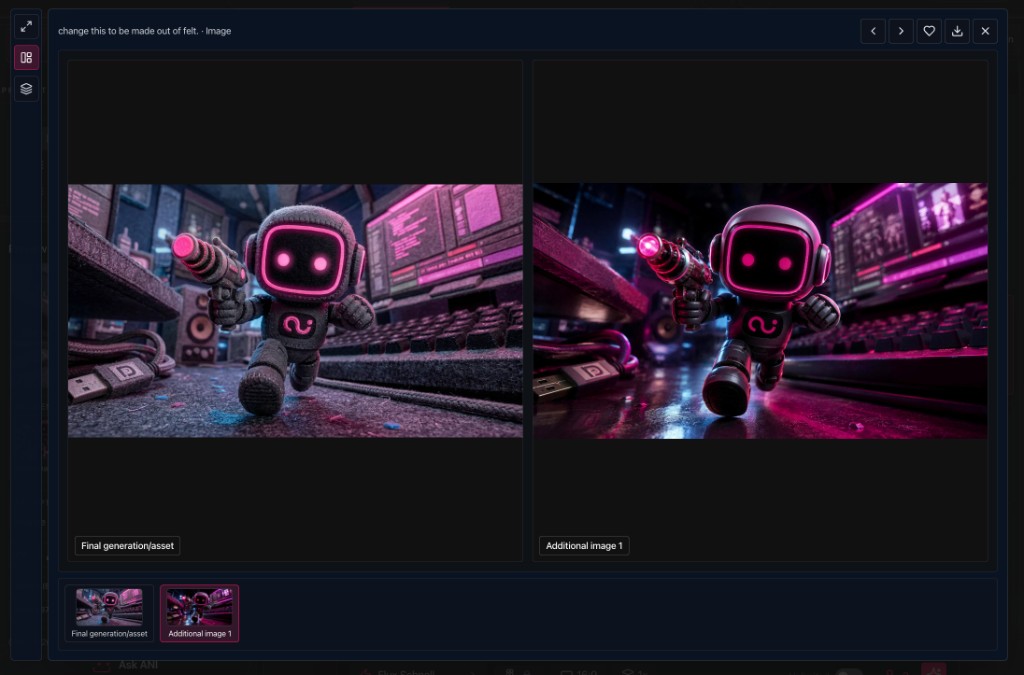
Slide over
The final image fills the frame. The selected reference is revealed through a pink vertical slider — drag the handle left or right to compare before and after (or reference vs output).
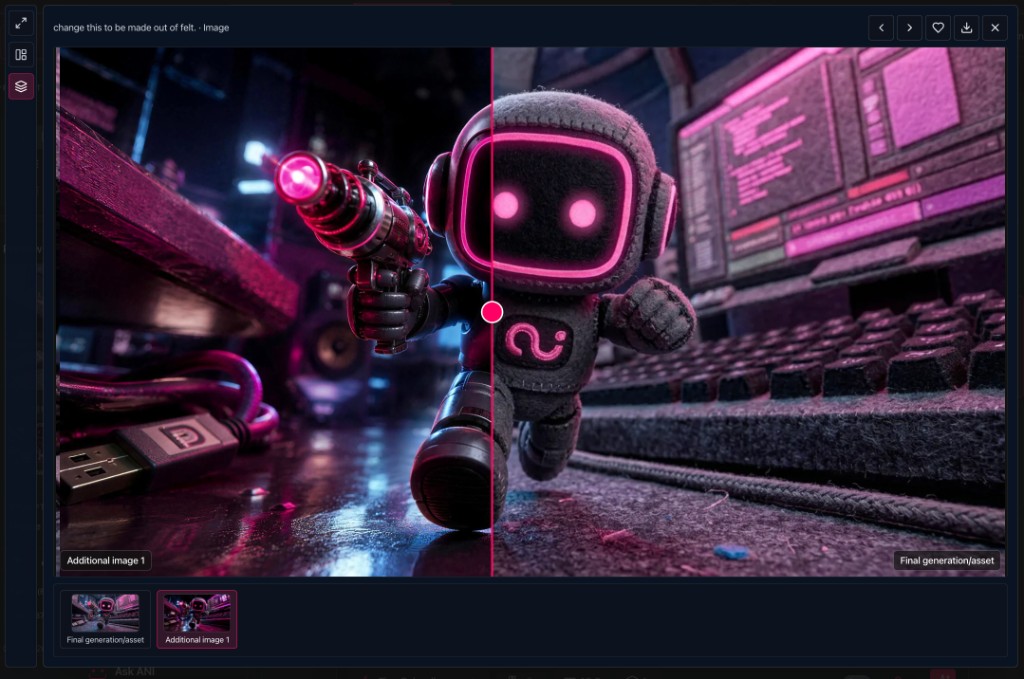
Typical workflows
Check a restyle or edit
Open expanded view → select Additional image 1 (your source) → switch to Side by side or Slide over to see how much changed.
Verify image-to-video source
For a video asset, select the start-frame reference in the strip and use Side by side to confirm motion matches the input still.
Inspect quality
Stay in Full view on Final generation/asset → enable the magnifier → check edges, faces, and texture before approving.
Save or favourite
Use Heart or Download from the top bar without leaving expanded view.
Related guides
- Gallery, Filters & Layout
- Uploads & References
- Selection, Move & Bulk Actions
- Asset Library (Create)
Expanded view is desktop-first. On smaller screens the left view-mode toolbar may be hidden — use the reference strip and top bar controls.
Looking for something else?
Tags
Related Articles
Uploads & References
Upload files, manage the reference strip, and feed images into the generator
Seedance 2.5: Create, Edit & Extend
Use Seedance 2.5 for longer clips, richer references, and three video tasks — create new video, edit an existing clip, or extend it forward or backward
Asset Library (Create)
Your hub for generating, organising, and managing project assets — with deep guides for every part of the workspace