
What is Ani?
Meet Ani — your AI production assistant for planning, creating, and storyboarding inside every project
Ani (short for the AI Animation production assistant) is the built-in copilot that helps you move from idea to finished production. Ani understands your project context — brief, script, folders, storyboard frames, and production plan — and can take real actions in the app on your behalf.
Ani is not a generic chatbot bolted onto the side. It is wired into the production pipeline so it can help you set up projects, plan productions, organise assets, build storyboards, and run generations — always with your confirmation before anything important changes.
Where you'll find Ani
Ani appears in different layouts depending on which page you're on:
| Where | How Ani appears | Best for |
|---|---|---|
| Projects hub at /dashboard/assets/ | Inline chat next to the project starter | Describing a new production and confirming project setup |
| Create (asset library inside a project) | Ask ANI bar in the sidebar | Generating assets, organising folders, promoting assets to storyboards |
| Storyboard | Ask Ani about this storyboard... bar at the bottom | Adding frames, shot prompts, continuity checks, opening the generator for a frame |
| Plan (production planning) | Docked sidebar on desktop | Script, production plan, required elements, components, and approvals |
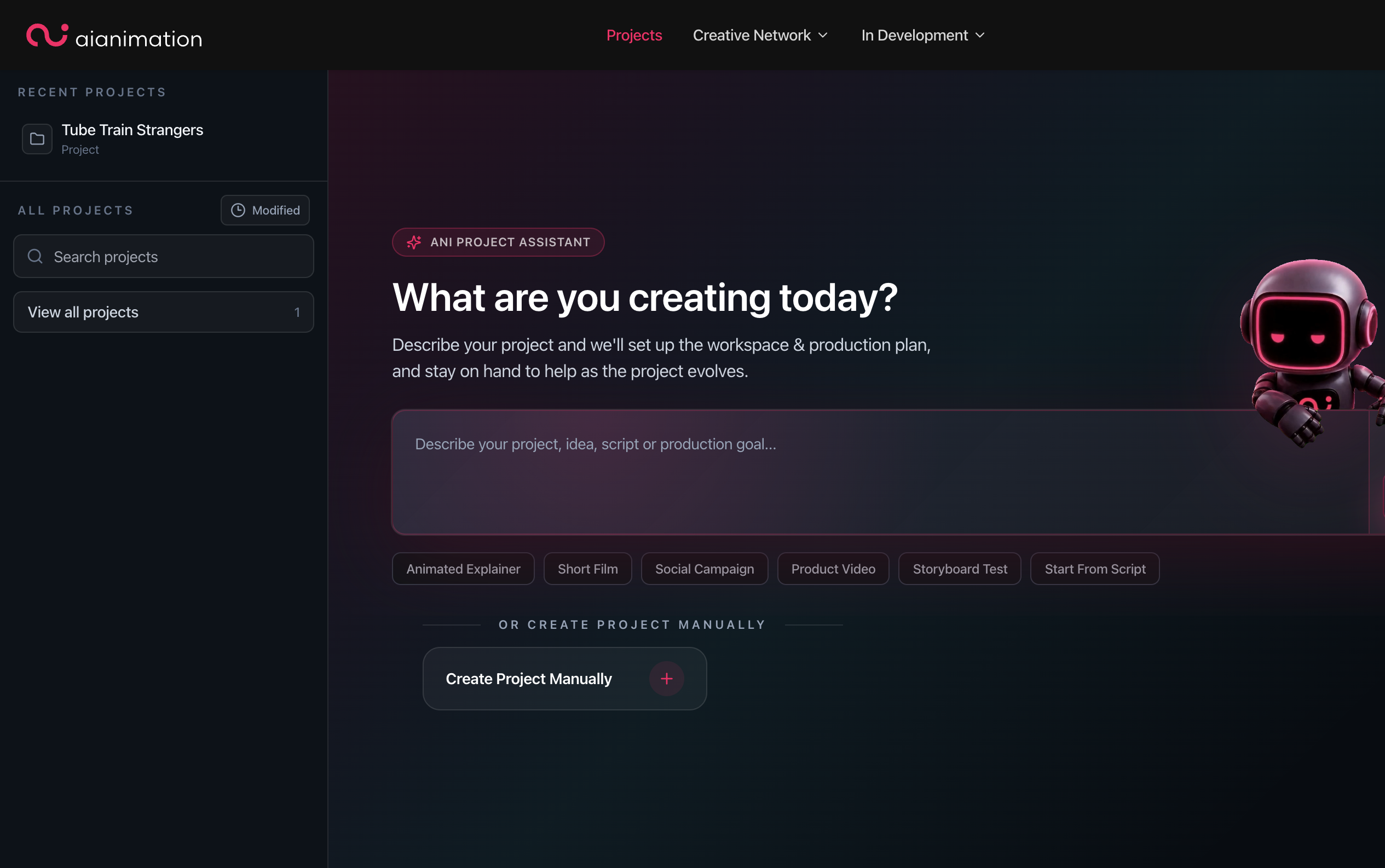
On the Projects hub, tap the How Ani helps icon (top right of the starter panel) for a quick summary of guided setup.
What Ani can help with
Ani adapts to the page you're on. You do not need special commands — describe what you want in plain language.
Starting a project (Projects hub)
When you describe a new idea and click Ask Ani, Ani may:
- Ask clarifying questions about audience, format, or source material
- Propose a Create Project action with a name, folder structure, and starter production plan
- Wait for you to review and confirm before anything is created
See Create a New Project for the full walkthrough.
Planning a production (Plan)
On Plan, Ani works alongside your script and production structure. Typical tasks include:
- Creating or revising a production plan from a brief or script
- Adding or updating required elements (characters, locations, props, etc.)
- Creating production components and tracking readiness
- Updating your project brief or source script
- Building shots from script material
Ani stays open in the sidebar on desktop so you can iterate on the plan without losing context.
Creating assets (Create)
Inside a project's Create workspace, Ani can help with generation and organisation:
- Applying generator settings and references from your production context
- Running image or video generation (these use credits)
- Organising assets into folders
- Adding selected assets to a storyboard
- Marking rejected directions so Ani does not repeat them
Click Ask ANI in the sidebar to open the assistant panel.
Storyboarding (Storyboard)
On Storyboard, Ani focuses on sequence and shot work:
- Creating storyboards and adding frames
- Updating frame prompts, actions, and notes
- Generating contextual shot prompts
- Opening the generator for a frame (seeded from the frame, without auto-starting)
- Reviewing project continuity across frames
Use the Ask Ani about this storyboard... prompt at the bottom of the storyboard view.
How conversations work
Ani follows a propose → confirm pattern for anything that changes your project.
You describe the goal
Type what you want — e.g. "Set up a 30-second product explainer" or "Add three frames for the opening chase."
Ani responds with a plan
Ani explains what it intends to do. It may ask follow-up questions if something is unclear.
You confirm actions
Important changes appear as action buttons (for example Create Project, Create Production Plan, or Run Image Generation). Nothing runs until you confirm.
Ani executes and reports back
After you confirm, Ani performs the action and tells you what happened. You can keep chatting to refine from there.
Example things to ask
You do not need precise syntax. Try prompts like:
- "Create a short film project about a lighthouse keeper who finds a message in a bottle."
- "Revise the production plan to add a second location for the rooftop scene."
- "Add storyboard frames for shots 4–6 from the script."
- "Generate a wide establishing shot of the city at dusk using the approved style reference."
- "Organise today's generations into a folder called 'Hero character explorations'."
For better generation results, combine Ani with Writing Effective Prompts and Video Generation Best Practices.
Tips for working with Ani
- Be specific about format and audience when starting a project — length, platform, and tone help Ani propose the right structure.
- Confirm actions deliberately — read the proposed project name, folder layout, or generation settings before clicking confirm.
- Work in the right pipeline step — planning questions work best on Plan; shot and frame work on Storyboard; asset generation on Create.
- One change at a time when refining generations — adjust prompt, model, or reference separately so you can see what improved.
- Use manual setup when you prefer — on the Projects hub you can always choose Create Project Manually instead of chatting with Ani.
Troubleshooting
Ask Ani is greyed out on the Projects hub — Type something in the What are you creating today? box first. The button activates once you have a description.
Ani proposed an action but nothing happened — You must click the confirm button on the proposed action in the chat. Dismissing it cancels the step.
"No assistant actions available here" — You may be on a page or project role where editing is restricted, or outside a project context. Open a project and switch to Create, Storyboard, or Plan.
Ani suggested a generation I don't want — Decline or skip the action. You can also mark assets as rejected for context so Ani avoids repeating that direction.
More fixes: Common Issues & Solutions.
Next steps
- The Production Pipeline — walk through Plan, Create, and Storyboard
- Create a New Project — start with Ani or manual setup
- Setting Up Your Account — dashboard, credits, and pipeline overview
- Writing Effective Prompts
- Video Generation Best Practices
This guide typically takes 5 minutes to read.
Looking for something else?
Tags
Related Articles
Create a New Project
Start a production with Ani or set up a project manually from the Projects hub
What is AIAnimation.com?
What AIAnimation.com is, who it's for, and how the production platform fits together
Accessing AI Animation
How to request access, accept an invitation, set up an invited login, or sign in to AI Animation